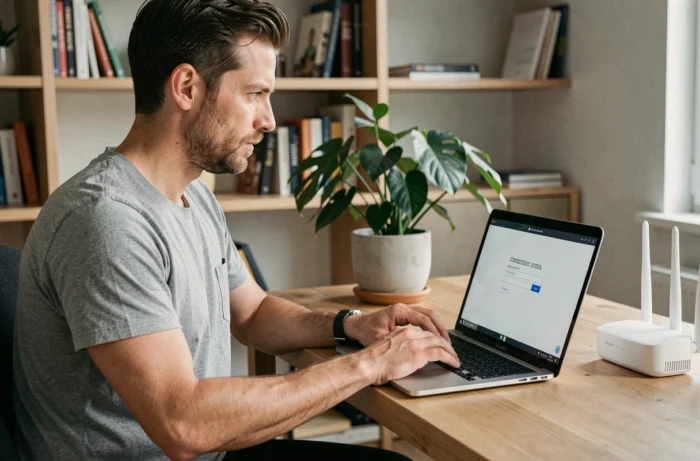
Your Internet box contains a settings panel accessible from any browser. To reach it, you need to type a local IP address in the address bar, most often 192.168.1.1. This action allows you to change the Wi-Fi password, check the devices connected to the network, or change the DNS servers used by your connection.
The problem is that this address doesn’t always work. Depending on the operator, the box model, or the network configuration, access may fail without a clear explanation. This guide details the checks to perform even before opening the browser, then the concrete steps to connect to the administration interface.
Find the correct gateway address before typing 192.168.1.1
Typing 192.168.1.1 out of habit is tempting, but not all routers use this address. For Free, the Freebox responds at http://mafreebox.freebox.fr/ or at 192.168.1.254. For Bouygues Telecom, the alias http://mabbox.bytel.fr/ also works. Orange and Sosh do use 192.168.1.1 on the Livebox, but some models also accept the alias http://livebox/ directly.
You can access Vox Libris to find the addresses associated with the main French operators. The key point to remember: the default gateway depends on the manufacturer and the Internet service provider.
To identify the exact address of your equipment, the most reliable method is through your computer or phone:
- On Windows, open the command prompt (cmd) and type ipconfig. The “Default Gateway” line displays the address to use.
- On macOS, go to System Preferences, then Network, click on your active connection, and check the TCP/IP tab. The router’s address is listed there.
- On an Android or iOS smartphone, access the details of your Wi-Fi connection. The gateway or router address appears in the advanced settings.
This check takes less than a minute and prevents you from looking for a problem where there isn’t one.

Connecting to the admin interface: HTTP protocol and local network
Once the correct address is identified, open your browser (Chrome, Firefox, Safari, Edge) and type it in the address bar, not in the search bar. The distinction matters: if you type 192.168.1.1 in the Google search field, you will get web results instead of your box’s administration page.
You may have noticed that a typical website starts with https://? Your router’s interface often works in plain HTTP, without the “s”. Type http://192.168.1.1 instead of https://. Some recent browsers block or display a security warning when the connection is not encrypted. This behavior is normal for a local address.
On some router models, a custom port may be required if the configuration has been changed. In this case, the address will look like 192.168.1.1:8080. This situation remains rare on the boxes of mainstream French operators.
Why the page doesn’t display from the mobile network
Accessing 192.168.1.1 requires a direct connection to the box, either via Wi-Fi or Ethernet cable. If you are browsing on 4G or 5G, your phone is using the mobile operator’s network and cannot reach the local address of the home router.
Also, disable any active VPN or proxy before attempting the connection. These tools redirect network traffic and prevent access to private addresses. Avoid using your box’s guest Wi-Fi network, which intentionally isolates devices from the administration interface.
Router admin credentials: do not confuse with the Wi-Fi password
The login page asks for a username and password. Many people enter their Wi-Fi network password, the one printed on the label stuck under the box. This is not the correct one.
The admin password is distinct from the Wi-Fi password. On an Orange Livebox, the default credentials are often “admin” for the username and the first eight characters of the security key printed on the box. For other manufacturers, the most common default pair is “admin / admin” or “admin / password”.
To find your credentials:
- Check the physical label stuck under or behind the router. It usually mentions the local IP address and the factory credentials.
- Look in the documentation provided with the box or on your operator’s website, in the support section.
- If the password has been changed and forgotten, a factory reset (holding the reset button for several seconds at the back of the box) restores the original settings, including credentials.

Troubleshooting when 192.168.1.1 remains inaccessible
The page refuses to display despite the previous checks? A few concrete suggestions can help resolve most blocks.
Clear DNS cache and change browser
A corrupted DNS cache can prevent the resolution of the local address. On Windows, type ipconfig /flushdns in the command prompt. On macOS, the equivalent command is sudo dscacheutil -flushcache. After this operation, restart the browser and try to access again.
Also, try another browser or a private browsing window. Some extensions (ad blockers, proxy managers) interfere with local connections.
Use Ethernet cable instead of Wi-Fi
If Wi-Fi is problematic, connect an Ethernet cable between your computer and the box. A wired connection eliminates signal or guest network issues. It is also the most reliable method after a factory reset when the wireless network is not yet configured.
Finally, check that the box is powered on and that the Internet or local network light is active. A simple power restart (unplugging, waiting about thirty seconds, plugging back in) sometimes resolves temporary software blocks of the administration interface.
Accessing 192.168.1.1 or your box’s gateway address does not require any particular technical skills. The key is to check three things before looking further: the correct IP address, the connection to the right network, and the correct admin credentials. With these three elements in hand, the configuration page opens in a few seconds.